Wisey Review 2027: I Tried It So You Don’t Have To

In this Wisey review, I will show you whether it delivered on its promise to give structure, focus, and the tools I need to build habits that stick.

I spent a week testing the platform to see how well it works in real life. Long story short, it helped me overcome procrastination, but its predatory subscription model makes it hard to recommend.

What is Wisey?
wisey review

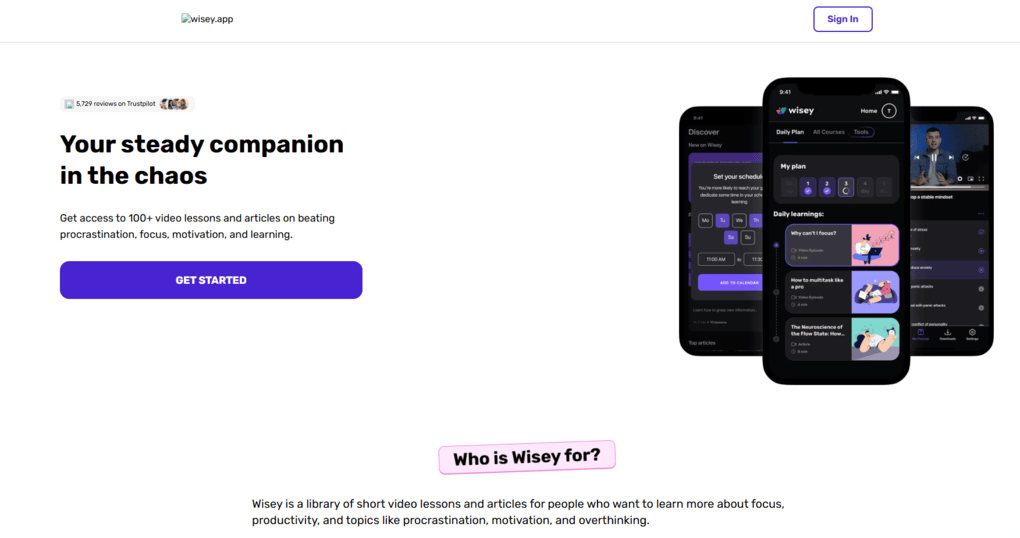
Wisey is a productivity and personal-growth app designed to help you beat procrastination, build lasting habits, and manage distractions without feeling overwhelmed.

It’s a mobile app for iOS and Android, and especially popular among people looking for ADHD-friendly tools, those who struggle with “information overload,” and anyone who finds traditional hustle-hard productivity tools too stressful.

My Wisey Experience: Feature-by-Feature Ratings

Key takeaway: Wisey offers useful productivity features, but its high subscription costs, unclear pricing, and reported billing issues make it difficult to recommend. My rating: D.

FeatureMy experienceMy Rating
Productivity tracking✅ Quick daily check-ins with productivity ratings, supporting factors, and distractionsA
Productivity analytics⚠️ Useful charts and recommendations, but lacks advanced reporting and detailed metricsC
Habit tracking✅ Easy to create habits, set goals, schedule reminders, and track progressA-
Daily Plan✅ Short, actionable micro-missions and lessons; most took me around 5 minutesA
AI Productivity Coach❌ Fast responses, but no meaningful personalization or analysis of your tracked habits and productivity data; little added value over ChatGPTD-
Focus timer✅ Customizable focus sessions, breaks, and roundsA-
App & website blocking✅ Block specific apps, websites, or entire categories during focus sessionsA-
Soundscapes✅ Background sounds that work alongside the focus timer and app blockerB+
Personal growth content✅ Library of lessons, videos, and courses covering productivity, psychology, and habitsA-
Task management⚠️ Useful for simple planning, but lacks advanced featuresC
User interface✅ Clean, intuitive, and beginner-friendly; minimal learning curveA
Calendar⚠️ Weekly overview is useful, but I missed a more detailed monthly calendarC+
Subscription & billing❌ Numerous user complaints about unexpected charges, unclear pricing, hidden fees, and cancellation difficultiesF

How much does the Wisey app cost?

While I enjoyed using this deep focus app, its subscription and billing practices are my biggest concern.

Reddit thread about Wisey's pricing

After researching user experiences on Reddit, I found several complaints about unexpected charges, unclear pricing, and difficulties canceling subscriptions.

Here are some examples:

  • High subscription costs: In this thread, BuildingTop9241 reported paying $59.99 per month, while another reported an initial charge of $15.99 followed by an additional $17.99 for something they claimed they hadn’t agreed to.
  • Unexpected recurring charges: Several users reported being charged for additional products, including ebooks, even after believing they had canceled their subscriptions.
  • Cancellation difficulties: Feisty-Feline-5372 claimed they had lost over $500 to recurring payments, while another reported continued ebook charges despite receiving a cancellation confirmation.
  • Lack of pricing transparency: Users complained that subscription prices weren’t clearly displayed before completing Wisey’s initial assessment.

These are individual user reports, and I couldn’t independently verify every complaint. Nevertheless, the number and nature of these experiences raise serious concerns about subscription transparency.

But when I tried to find the Wisey app’s pricing, I realized there is no fixed single price.

There are introductory offers (such as $10.50 for 1 week, $19.99 for 4 weeks, or $34.99 for 12 weeks) and auto-renewals at up to $48.50 every 4 weeks or $99.99 every 12 weeks, depending on your location.

My recommendation: If you decide to try Wisey, carefully review the checkout terms, recurring charges, and cancellation conditions before entering your payment details.

Testing Wisey’s Core Features: What Worked and What Didn’t

Here are the key features I used daily during my Wisey review:

Productivity Tracking: Simple Daily Check-ins That Work

Key takeaway: Wisey makes daily productivity tracking simple and helps identify distractions, but its insights lack the depth of tools like Floviu.
Wisey's personal productivity tracking

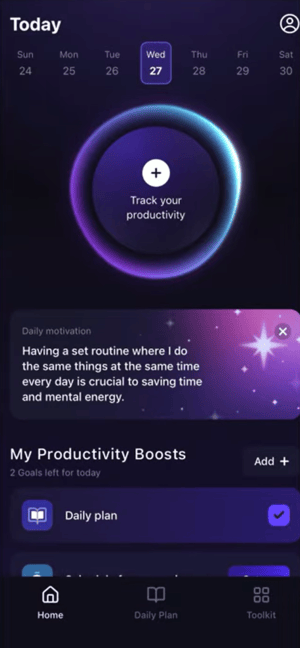
After downloading the app and logging into your account, Wisey takes you directly to the home page.

At the top, you can see your current week overview. It looks clean and visually appealing, although personally, I think a more detailed monthly calendar view would make navigation easier.

Below that, you can track your daily productivity level by selecting whether your day felt low, medium, or highly productive.

What I really liked is that Wisey goes one step further by asking what supported your productivity and what distracted you during the day. This creates a quick reflection system that only takes a minute but helps you better understand your habits over time.
Wisey productivity levels

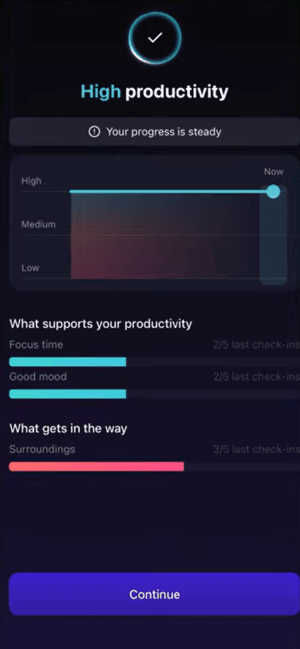
Once you add your entries, Wisey generates charts and insights showing your recent productivity trends, the factors helping you stay productive, and the biggest distractions affecting your focus.

It highlights your main productivity killer and gives short recommendations on how to improve it. The entire system is simple, fast, and easy to maintain daily, which makes it much more realistic for long-term use.

That said, don’t expect highly advanced analytics or detailed productivity metrics. The focus here is simplicity and self-awareness rather than deep data tracking.

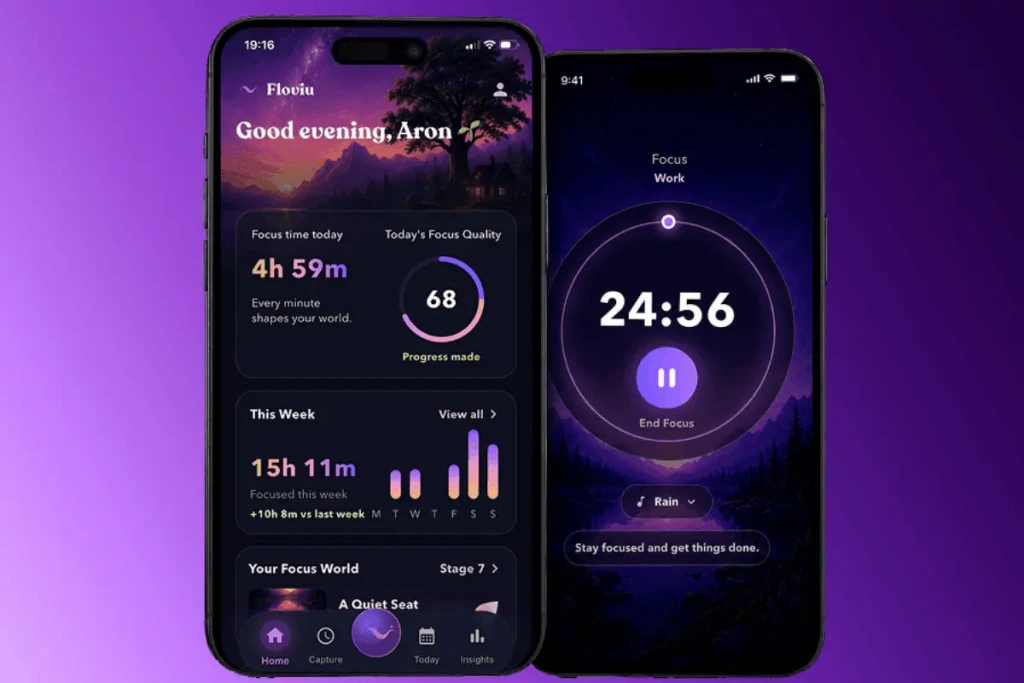
In comparison, Floviu takes focus insights further by analyzing your focus sessions to identify your best focus times, ideal session lengths, biggest distractions, and providing personalized recommendations.

So, instead of relying on daily self-reflection or your intuition, it helps you understand the conditions that lead to your most productive sessions and how to spend less time with your phone.

Habit Builder: Easy to Set Up and Stick With

Key takeaway: Wisey makes building and tracking habits effortless, with quick setup, flexible goals, and reminders that help you stay consistent.
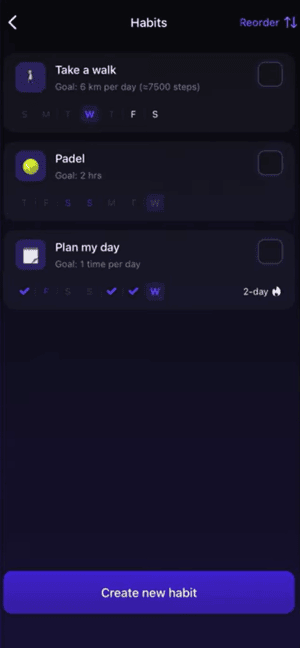
Wisey's habit tracking (1)

Habits are either the foundation of a productive life or the reason why we struggle to stay consistent. Wisey made a pretty good impression on me in this area.

The habit system is straightforward and works especially well for people who need a simple accountability tool without unnecessary complexity.

Inside the Toolkit section, you can create and manage habits. Wisey already includes a few default habits, but you can also create custom ones.

When creating a custom habit, you can choose whether you want to build a habit or break one.

For example, I usually try to go jogging at least once a week, so I wanted to see how Wisey could help me stay consistent.

You simply choose an emoji, add the habit name, define your goal, select the days you want to complete it, and decide whether you want reminders.

Once you complete the habit, you just check the box, and Wisey tracks your progress automatically. The setup process is quick, beginner-friendly, and easy to stick with.

Daily Plan: Practical Lessons in Just Five Minutes

Key takeaway: Wisey’s bite-sized lessons make learning about productivity and overcoming procrastination easy, with practical tips that take just five minutes a day.
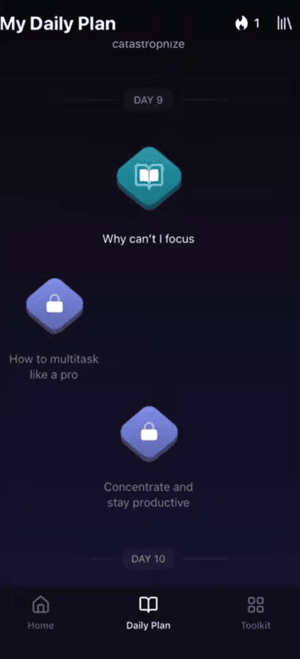
Wisey's daily lessons

The Daily Plan feature includes micro missions and short video lessons designed to help you overcome procrastination, improve focus, and reduce mindless scrolling.

Instead of overwhelming you with long productivity courses, Wisey gives you a few small, actionable tasks each day to build momentum gradually.

I usually read these lessons while commuting to work, and most took only about five minutes to complete.

I found them useful, especially for users who want to better understand topics like procrastination, focus, multitasking, dopamine distractions, and productivity psychology.

You also get access to Wisey’s larger content library, including courses, articles, videos, and lessons on productivity, learning, communication, and psychology.

Overall, I think this is a valuable addition because it makes Wisey feel more like a personal growth platform than a traditional productivity app.

AI Productivity Coach: Fast Answers, Little Personalization

Key takeaway: Wisey’s AI Coach provides quick, practical answers but lacks personalization and access to your productivity data. In my testing, it offered little value over ChatGPT.
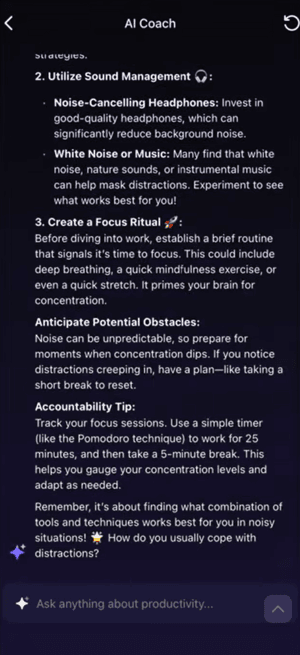
Wisey AI productivity coach testing

Wisey also includes an AI Productivity Coach that helps with goal-setting, planning, focus, and habit formation.

You can find this feature inside the Toolkit section. The AI can help you break down tasks, create plans, stay motivated, and organize your workload.

In my experience, the responses were fast, relevant, and surprisingly practical for everyday productivity questions.

But it’s not better than just using ChatGPT, since it doesn’t answer questions based on your actual actions or data, and there is absolutely zero personalization.

For example, I asked the AI to analyze my day based on the productivity data and habits I had already added into the app.

Unfortunately, it wasn’t really able to do that. Instead, it asked me to manually explain what happened during the day.

So, it feels like the AI is just part of the product for the sake of AI, but it didn’t provide any value during testing. I think it would be significantly more powerful if it could better analyze the data already stored in the app and automatically generate more personalized insights.

Focus Tools: Everything You Need to Stay Focused

Key takeaway: Wisey combines a customizable focus timer, soundscapes, and app blocking into one simple workflow, helping you stay focused and avoid distractions without unnecessary complexity.
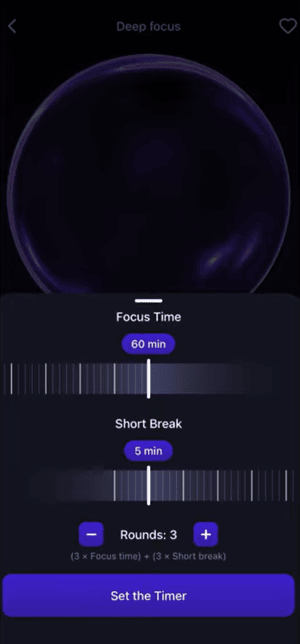
Wisey focus sounds and timer

This feature is quite similar to Floviu’s focus timer.

If you are looking for a simple way to stay focused and not get distracted by scrolling, it’s Wisey app’s go-to feature. Enter the soundscapes, select the activity you want to start, and hit the play button.

Here, you can personalize the background sound, and the best part is that you can block distracting apps and websites and start the focus timer at the same time.

When starting the timer, you can select the length of the focus time, length of breaks, and how many rounds you need. If you want to block apps or websites, you can block specific apps and sites or the whole category.

In my day-to-day work, I discovered these aren’t revolutionary features on their own, but together they create a productivity system that feels supportive rather than overwhelming.

Wisey’s biggest strengths & weaknesses

What stood outThe trade-offs
🟢 Beginner-friendly interface: Clean, intuitive design makes it easy to get started without a steep learning curve.🔴 Subscription and billing concerns: Numerous users report unexpected charges, unclear pricing, and cancellation difficulties.
🟢 Effortless habit tracking: Create habits, set goals, schedule reminders, and track progress in just a few taps.🔴 Limited productivity analytics: Useful for daily reflection, but lacks detailed reports and deeper insights into your productivity patterns.
🟢 Practical daily lessons: Five-minute micro-missions and personal growth content help you understand procrastination and build better routines.🔴 AI Coach lacks personalization: It couldn’t analyze my existing productivity data or habits, offering little additional value over ChatGPT.
🟢 Integrated focus tools: Combines a customizable focus timer, soundscapes, and app blocking into one distraction-free workflow.🔴 Basic task management: Fine for simple daily planning, but lacks advanced task organization features
🟢 Simple productivity tracking: Quick daily check-ins help identify distractions and productivity trends without overwhelming you.

Best Wisey alternative: Floviu

Floviu - A focus app for deep work

Compared to Wisey, Floviu goes deeper into productivity analytics, helping you discover your best focus times, ideal session lengths, and biggest distractions. It also combines customizable focus sessions, calming soundscapes, and app blocking to help you create the right environment for deep work.

But the biggest difference is pricing and transparency. While Wisey has varying subscription prices and numerous user complaints about unexpected charges, Floviu offers a free plan forever and clear subscriptions.

Floviu’s paid plans start at $9.99/month or $69.99/year, with a 7-day free trial and the option to cancel anytime.

Other Wisey alternatives

Here are some other Wisey alternatives you can consider.

Focus appChoose if you needStarting price (annual plan)
OpalA premium screen time app with strict app blocking, flexible rules, and a polished interface.Free plan available; $99.99/year for premium features.
one secA solution to break automatic app-opening habits$19.99 per year
FreedomStrict website blocking across multiple devices.$19.99 per year
Focus To-DoPomodoro + task managementFree, $11.99 lifetime license
Cold TurkeyStrict app blocking on desktopOne-time payment of roughly $45
ScreenZenA free solution for screen time controlFree
ForestA gamified focus appFree, starting from $3.99

Wisey App review: Is it for you?

So, is Wisey worth it?

After testing Wisey for a week, I enjoyed using it. Its simple habit tracker, practical daily lessons, and integrated focus tools make it a good productivity app for overcoming procrastination and building better routines.

It’s especially suitable for beginners who want a supportive productivity app without complexity.

However, Wisey has some limitations. Its productivity analytics are basic, the AI Coach offers little personalization, and its task management features aren’t too advanced.

But my biggest concern is its pricing and subscription practices. Given the numerous user complaints about unexpected charges, unclear pricing, and cancellation difficulties, I find it difficult to recommend Wisey

My final verdict: Wisey is a good focus app, but its subscription model raises serious concerns. While I enjoyed using it, I would explore alternatives with more transparent pricing before committing to a paid plan.

Frequently Asked Questions

How much does the Wisey app cost?

Wisey doesn’t have a single fixed subscription price. Introductory offers include $10.50 for one week, $19.99 for four weeks, or $34.99 for 12 weeks.

Nevertheless, subscriptions can automatically renew at up to $48.50 every four weeks or $99.99 every 12 weeks, depending on your location and offer. Always check the renewal price before subscribing.

Is the Wisely app any good?

Wisey is a useful productivity app for overcoming procrastination, tracking habits, and improving focus. When testing, I particularly liked its simple interface, five-minute productivity lessons, and integrated focus tools.

Nonetheless, its limited analytics, basic AI Coach, and numerous user complaints about subscription charges make it difficult to recommend.

What is the Wisey app?

Wisey is a productivity and personal growth app for iOS and Android designed to help users overcome procrastination, build better habits, and reduce distractions.

It combines habit tracking, daily productivity check-ins, short educational lessons, an AI Productivity Coach, and focus tools such as a Pomodoro timer, soundscapes, and app blocking.

How do I cancel my subscription for Wisey?

To cancel your Wisey subscription, first check where you purchased it. If you subscribed through the App Store or Google Play, you can manage and cancel it through your device’s subscription settings.

If you subscribed directly through Wisey’s website, check your account’s subscription settings or contact Wisey’s customer support.
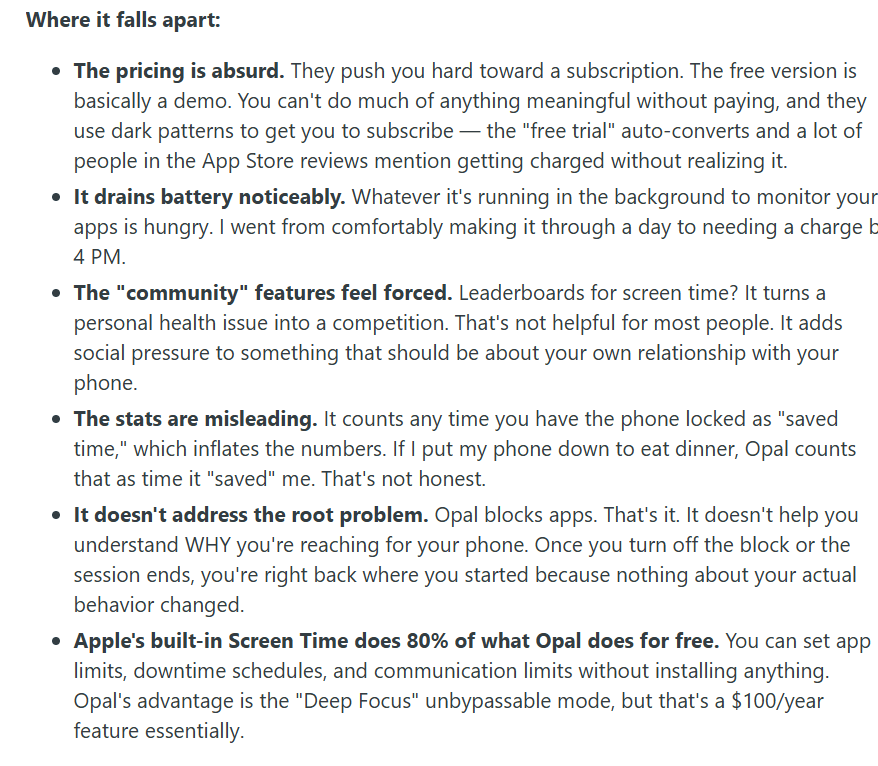
Honest Opal App Review 2026 – No Fireworks, Just Meh

I had high expectations before starting my Opal app review, especially after seeing the most polished UIs I’ve tested in a screen-time app.

At first, everything felt premium—from the blocking experience to unlocking gems.

But the longer I used Opal, the more my initial excitement faded, and I started wondering: what am I actually paying this much for?

What Opal actually is

Opal review

Opal is a screen time control app for iOS and Android devices launched in 2020. Since then, it has grown into one of the most popular apps for blocking distractions, reducing screen time, and staying focused.

As of 2026, Opal has 150,000+ app ratings and more than 1 million daily active users, making it one of the biggest names in the screen time app space.

The Best Parts of Opal

No time to waste, here are the best parts of Opal I found:

What Opal Does BestMy Experience
Polished UIAfter testing 10+ focus and screen time apps, I found Opal’s interface to be the most polished. The interactive elements make the app feel premium, and visually, the design is a 10/10 for me.
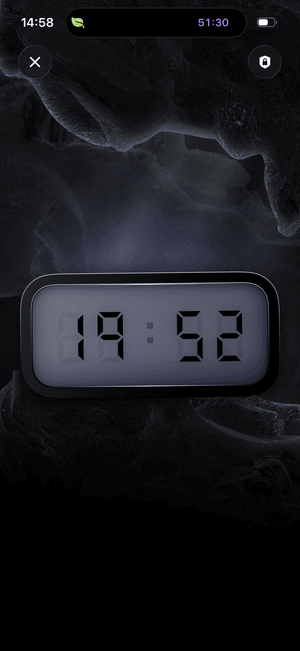
Deep focus modeDeep Focus Mode is genuinely difficult to bypass, making Opal a strong choice for people who struggle with phone addiction or repeatedly override their own blocking rules.
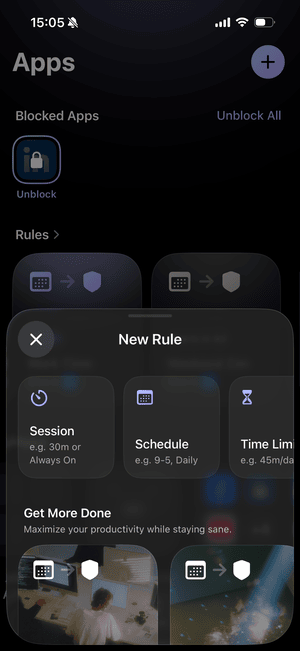
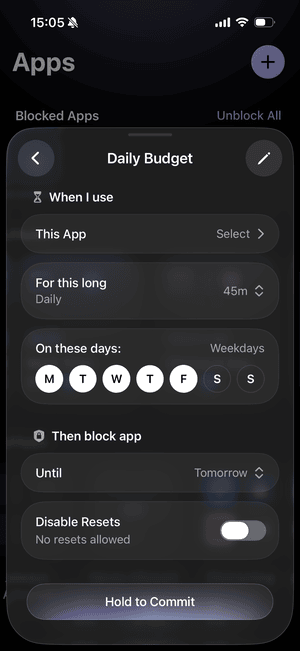
RulesOpal offers a wide range of rules, from daily time limits to limits on how often you can open an app. This gives you plenty of flexibility to reduce screen time and build healthier digital habits.
Onboarding processAs the founder of a competing focus app, Opal’s onboarding genuinely impressed me. It kept me engaged from start to finish and is one of the best onboarding experiences I’ve seen in this category.

The Biggest Drawbacks of Opal

Despite the polished experience, a few things made Opal much harder for me to recommend at its current price.

Opal’s Biggest DrawbacksWhat You Should Know
Hard-to-Justify PricingOpal’s pricing starts at $99.99 billed annually. If you choose the monthly plan and keep it for a year, you’ll end up paying around $239, making Opal one of the most expensive screen time apps I’ve tested.
Slow performance sometimesI occasionally found Opal slow, and I also noticed higher battery usage while using it. This may be related to its highly visual interface and background activity, but for an app that runs throughout the day, it’s something worth considering.
Uses mostly iPhone default app that is freeMany of Opal’s blocking features rely on Apple’s built-in Screen Time framework, which makes the premium price harder for me to justify especially when iPhone already these functions for free.
Doesn’t address the root problemOpal is excellent at restricting access to distracting apps, but it doesn’t really help you understand why you doomscroll or struggle to focus in the first place. It says you scrolled today 11% less, but will never know the actual reason behind it. I missed guidance that could help me rely less on strict blocking (as well as Opal) over time.
Limited focus featuresFor me, Opal feels more like a screen time app than a complete focus app. It lacks deeper focus insights, custom tags like you get with Floviu or Forest, and other tools that help you understand and improve how you focus.

What’s Using Opal’s Screen Blocking Like?

Opal app limits

Opal is a premium app, and I noticed it from the first second. The learning curve is relatively fast, and pre-made app-blocking rules can help you get started quickly.

After a week, it delivered stable performance and helped me reduce screen time.

My iPhone 15 regularly dropped from 100% to around 15% by 8 PM while I was testing Opal. After deleting the app, my battery life returned to normal, so this is something I’d pay attention.

One major thing I noticed after a few days is that my battery dropped every day, even though I barely used my phone.

First, I thought it was an issue with my phone but after I deleted Opal, everything went back to normal. So, when I searched online, I realized it’s a common issue with Opal: it drains your battery pretty fast.

This was frustrating because the app has to run all day in the background, so there is no way to avoid it.

I also found the app slow at times, especially when checking available gems.

On the other hand, while many people complained about bugs, I didn’t run into any on my iPhone when testing Opal.

To summarize, Opal did its job well for me, and beside the battery and performance issues I mentioned, the app blocking worked smoothly for me although I wasn’t satified with the features completely, but more on this below.

Opal Key Features: What You Actually Get

Here are the key features and my experience with what works & where Opal didn’t perform.

Rules

setting up rules with Opal (1)

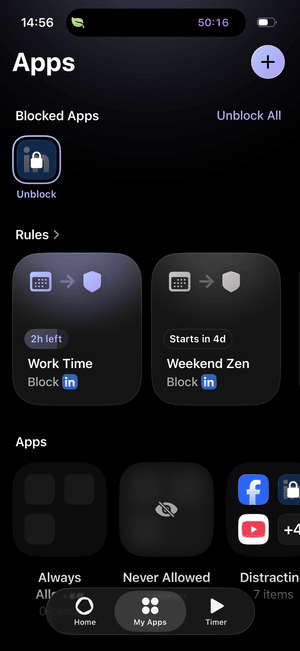
With rules, you can customize when Opal steps into your day. You can set rules based on sessions, schedule, time limit, and open limit.

You also get templates you can quickly adopt to boost productivity and block distracting apps while sleeping or relaxing.

What works: With the templates, you can quickly block out time for your activities and make sure you won’t doomscroll in that period. The different block types also let you customize the blocking experience.

Where it struggles: Feature-wise, everything worked well, especially the different rule types. However, the templates don’t add much value beyond helping you set up blocking hours faster, since they just mix the timeframe, days, and selected apps.

My rating: A

Don’t start by creating lots of custom rules. Try one of Opal’s templates first, then adjust the blocked apps and schedule around your actual routine. It’s much faster than building everything from scratch.

Blocking apps

blocking apps

Opal blocks apps and websites as well. It’s great that you can add apps that Opal will never block, and you can decide which apps to include in the distracting apps category.

While Opal mostly relies on iPhone’s built-in functions, it still makes the process easier for users.

What I like: If you choose the hard block, Opal makes it challenging to bypass, which is a good thing for people with social media addiction.

What’s missing: For me, Opal worked smoothly in the background. Nonetheless, when I did my homework and checked what people say about it on forums like Reddit, I realized many people complained about bugs. Sometimes the blocking feature simply doesn’t work, and they can open everything like normal unless they manually open theOpal again, and only then does the block start again.

My verdict: B+

Timer

focus timer feature (1)

Opal offers a basic timer. When you get started,, you can select the apps you want to block and how long you want to focus.

What shines: Simplicity. You can start the timer with one tap, and it blocks distracting apps.

What didn’t work for me: First, I don’t understand why I can’t select and change soundscapes inside focus sessions. If you start the wrong focus session without a soundscape, you have to wait until it finishes and start a new one with a soundscape. Also, I can’t change the soundscapes during sessions. I missed the focus app features as well, like tags, but since Opal is primarily a screen time app, we can overlook this.

My impression: D-

Meditations & Sleep stories

Meditations & Sleep stories (1)

Opal has some guided meditations and sleep stories for relaxing. Personally, this worked better than I expected!

What impressed me: These are small features, but they really helped me be more mindful day-to-day. I used its body scan numerous times, designed to release tension from head to toe, and noticed a positive impact.

What frustrated me: No complaints here – everything worked as I expected it.

My take on these features: A+

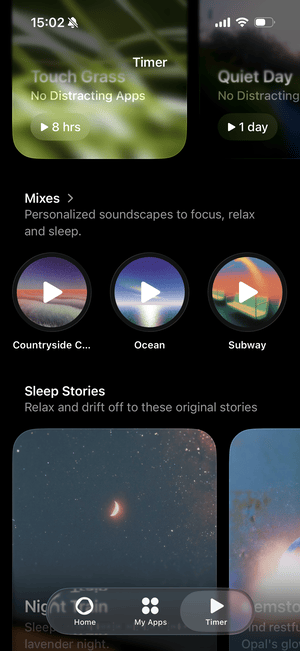
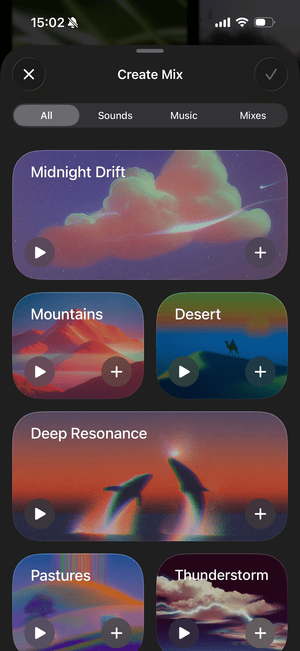
Soundscapes

trying Opal's Soundscapes (1)

Opal offers a large gallery of soundscapes and music; however, most require a paid plan, as the free tier includes only basic soundscapes.

What I enjoyed about soundscapes: I found the right music or soundscape for every situation I wanted. From city rain to brown noise, it has a great collection of soundscapes.

What started to bother me: As mentioned above, I can’t change sounds during focus sessions, which really annoyed me during testing. Also, with the free plan, you can access only the basic soundscapes. Other than that, this feature worked fine.

My score for this feature: B

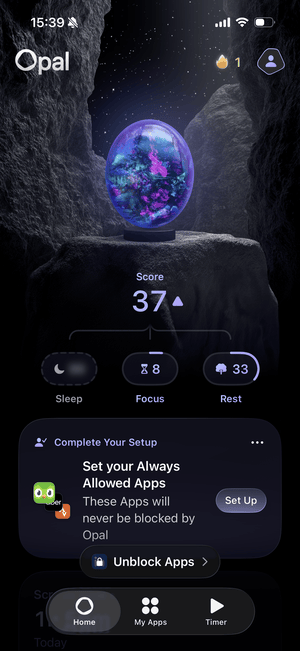
Opal Score

Opal score feature

If you click on your Opal score, you will get detailed reports about your screen time. The Opal score includes your sleep, rest, and focus scores and measures your well-being.

Where it worked: It breaks down your screen time habits well. You will see your first pickup, last scroll, sleep and screen time, and distracting apps. This helped me analyze my daily screen time and gave me an exact number of how much time I spend scrolling.

Where it fell short: I genuinely enjoyed Opal’s reports, but they didn’t answer the most important question: how to improve and what to focus on. That said, I did not get closer to the real problem with my scrolling.

My grade: B-

Opal became very good at telling me how much I was scrolling, but not why I was doing it. I knew my screen time, first pickup, last scroll, and most distracting apps—but I still didn’t know what actually triggered those habits.

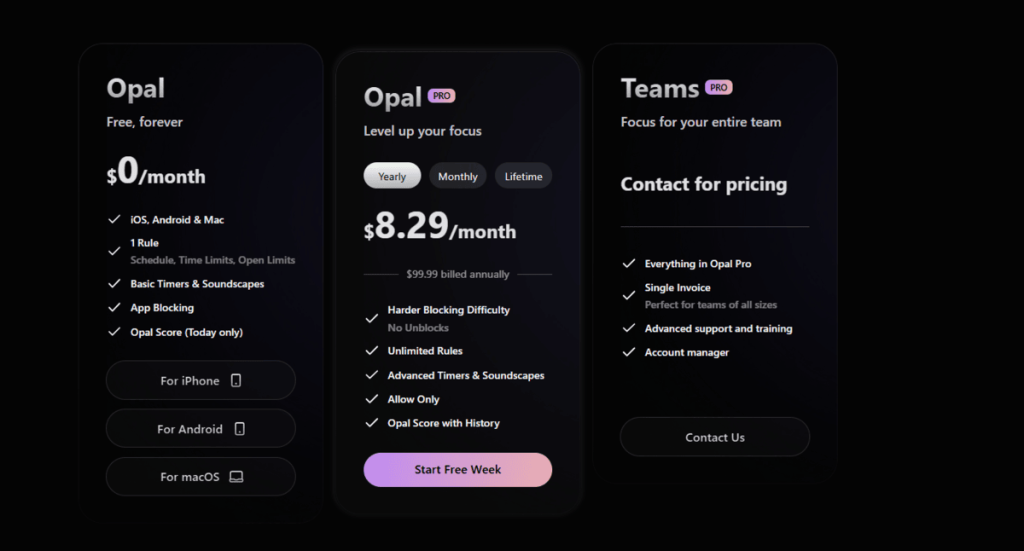
Opal Pricing 2026

Opal pricing plan

Opal is probably the most expensive app blocker in Apple’s App Store and Google Play Store. The yearly plan is $99.99, the monthly plan is $19.99, and the lifetime deal is $399.

On average, screen time apps cost around $30 to $70 yearly, so Opal’s pricing puts it in the premium category.

At $19.99/month, keeping Opal for a full year would cost $239, compared with $99.99 for the annual plan. If you decide to upgrade, the yearly option makes significantly more sense.

Opal review from Reddit (1)

As Dangerous-Project874 mentioned on this Reddit thread, Opal’s pricing plan is expensive. He also mentions they use dark patterns to get you subscribed, but I haven’t experienced that, though the limited free version is true.

Who Should Use Opal?

Ideal: You want a premium screen time app with polished design, flexible rules, and strict blocking that’s difficult to bypass.

Consider carefully: You mainly want to reduce screen time, but you’re unsure what options you have and look for a reasonable price.

Avoid: You want a complete focus app that helps you understand why you get distracted, when you focus best, and how to build better focus habits instead of just blocking apps.

What Do Real Everyday Users Think of Opal app?

Opal scores high across the App Store & Play Store, with common issues:

PlatformRatingBased OnCommon Complaints
App Store4.7/587,000+ reviewsBugs, too expensive
Play Store4/58,000+ reviewsConfusing interface, blocking doesn’t work properly
Reddit–Reddit threadsExpensive

Top Opal alternatives

Here are my best Opal alternatives if you need a more budget-friendly solution.

Screen time appChoose if you needStarting price (annual plan)
FloviuA focus app to understand how to focus betterFree includes app blocking, yearly plan is $69.99
one secA solution to break automatic app-opening habits$19.99 per year
FreedomStrict website blocking across multiple devices.$19.99 per year
Focus To-DoPomodoro + task managementFree, $11.99 lifetime license
Cold TurkeyStrict app blocking on desktopOne-time payment of roughly $45
ScreenZenA free solution for screen time controlFree
WiseyA beginner-friendly focus app for overcoming procrastinationVaries by offer; introductory plans from $34.99/12 weeks, renewing at up to $99.99/12 weeks.
ForestA gamified focus appFree, starting from $3.99

A free alternative to Opal: Floviu

Floviu - A focus app for deep work

Compared to Opal, Floviu offers more analytics to understand how you mind works and figure out how to create the right environment for focusing with calming soundscapes, focus sessions, and app blocking.

If your main goal is to reduce screen time and prevent yourself from opening distracting apps, Opal is a pricey, but efficient solution. However, if you want to build lasting focus habits, understand how you focus best, and turn every focus session into meaningful progress, Floviu worths a shot.

A detailed breakdown to choose which one fits better👉Floviu vs Opal

Would I Recommend Opal?

Opal is a capable solution to control and monitor your screen time. Nonetheless, the limited free tier and pricey pricing plans make it hard to recommend.

For me, the main issue isn’t the price itself; I believe a handful of additional features could justify it. But with the current feature set, especially since most functions are available for free with Apple’s built-in system, Opal is simply overpriced.

If you want to see how I ranked the best focus apps for 2026, check out my video.

Frequently Asked Questions

Can the Opal app be trusted?

Yes, Opal is a safe and legitimate app although there were a few comments about shady tactics to subscribe one of the paid plans.

How much does the Opal app cost?

The yearly plan costs $99.99 annually, while the monthly is $19.99, and the lifetime deal is $399.

Is Opal actually a good app?

Based on Opal’s data, Opal users save an average of 1 hour and 23 minutes daily. Does it a good app? Absolutely.

Would I pay for ot? No way.

After testing it, Opal’s value proposition did not justify the price they charge for screen time contol.

A Honest Forest App Review By A Competitor (2026)

In this Forest app review, I wanted to find out whether growing virtual trees actually helps you stay focused, or if it’s just an extra feature.

Long story short, it helped me stay motivated longer. But I also found a few limitations that make it less effective as a complete focus app.

What is Forest?

Forest app review

Forest is a focus app for mobile that you can download from the App Store and Play Store. Unlike most traditional focus apps, it tries to keep you motivated by growing a virtual forest and completing focus challenges.

Forest has over 60 million downloads worldwide, and its team has planted over 2 million real trees since 2014.

What I Loved About Forest And What Didn’t Work for Me

Below, I break down how Forest helped me improve my focus and cut down the time I spent scrolling social media, as well as the challenges I faced.

Where Forest Worked for Me (And Other Users)

Before writing this Forest review, I checked quite a few forums to understand why people keep using the app. These are the areas where my experience matched what other users were saying.

Growing a Forest Creates Visible Progress and Reward

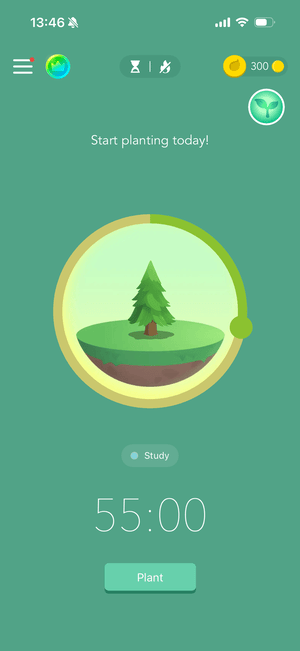
Forest productivity app's timer (1)

Everyone’s mind works differently, but for me, seeing a tree grow makes Forest feel like more than just a timer.

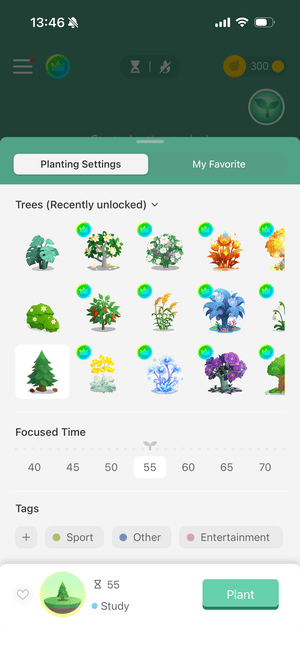
Before starting a session, you can choose from different tree species based on what you want to grow and add a tag to organize your focused time.

Forest's tree species (1)

As you spend more time focusing, the tree grows, and you can check your planted trees for today, a week, a month, or a year.

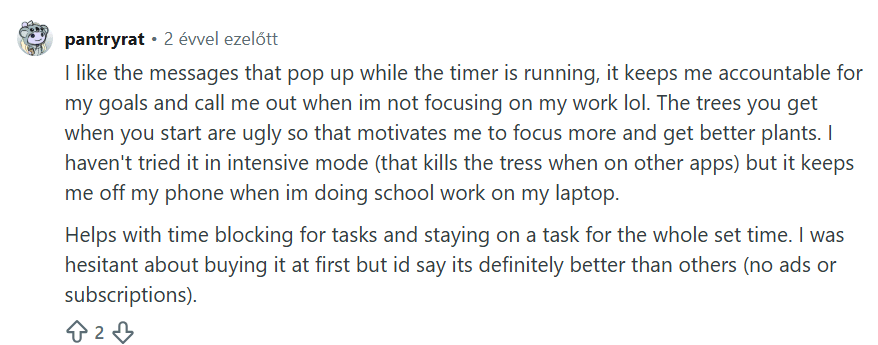
Reddit comment about Forest (1)

At first, it sounds like a cute little feature. But I found that it actually makes focusing feel more rewarding. Instead of finishing a session and feeling like all that effort disappears, you have something visual to show for it.

Personally, this little psychological trick worked surprisingly well for me, and based on the Reddit thread above, it worked for others as well.

Use different tree species and tags for different types of work. Over time, your forest becomes more than visual progress and you can quickly see what you’ve been spending your focused time on.

Simple Pomodoro Experience

Forest gets the point that people don’t need complex timers and focus sessions, but a place where they can easily get started. You only need to select the time limit, tree species, and tags, and you are good to go.

You can also use ambient sounds during focus sessions, but only one soundscape is included in the free version.

If growing the same trees starts to feel repetitive, switch between tree species based on the type of work you’re doing. It gives your forest more variety and makes it easier to associate certain trees with specific activities.

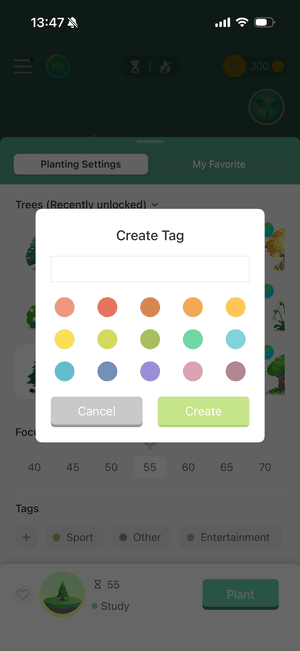
Tags

creating custom tags with Forest (1)

Many focus apps lack tags or a system for categorizing your time. Maybe it’s just me, but I want to see what I spent my time on each day, so I think this is a must-have feature.

You can create custom tags with colors, and start tracking them with the Pomodoro timer. You can assign them quickly, and I felt the whole process, from starting a timer and selecting a tag to completing a focus session, was beginner-friendly.

Mindful Space

Forest’s mindful break is a nice addition for relaxing, decompressing, and resetting your mind between focus sessions. You can use simple breathing exercises to slow down and prepare for your next session.

When testing Forest, I found this especially helpful for breaking the usual rhythm of starting and completing focus sessions over and over again.

Instead of jumping straight into another timer, it encouraged me to slow down and recharge for a moment.

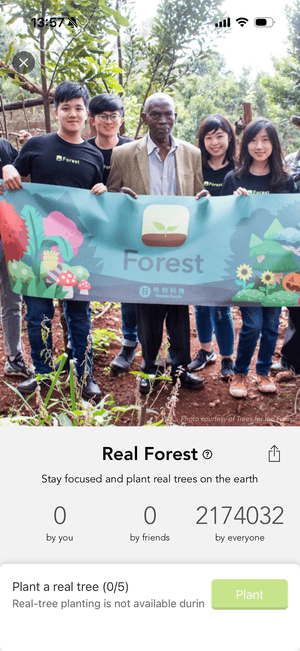
Plant Real Trees For the Future

plant real trees for the future (1)

Through Forest, you can also contribute to planting real trees, which is a great way to connect your focused time with something meaningful in the real world.

As you stay focused, you can earn virtual coins and use them toward real-tree planting. I really like this idea because your progress doesn’t have to stay entirely within the app—it can also help make the world a little greener.

What Didn’t Work So Well for Me (And Other Users)

Microtransactions & Limited Free Version

What did not work out well with Forest during testing (1)

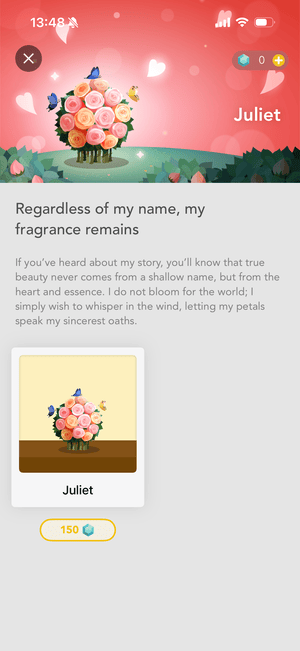
I am not a fan of microtransactions, and Forest includes quite a lot of them. To access exclusive tree types, you need to buy coins even if you paid for the Plus plan.

Furthermore, I think soundscapes are core parts of a focus app, which should be available for free. However, Forest forces you to upgrade if you want to use any soundscapes other than the basic one.

Also, you can block only one app or website with the free app. People are tempted to scroll on several distracting apps, from TikTok to Instagram, during focus hours. Blocking only one app will have no impact on people’s phone usage, since they will simply use another app.

Soft Blocking Leak

Forest's app blocker leak (1)

After bypassing Forest’s blocking screen, I could return to the distracting app for almost five minutes without being interrupted again. For someone prone to doomscrolling, that’s a surprisingly large window to fall back into scrolling.

After you choose to continue to an app that Forest has blocked, the app remains unblocked for around 4 minutes and 50 seconds after your last use. I found this window too long, as it gives you plenty of time to return to the distracting app without seeing Forest’s blocking screen again.

This is partly an iOS limitation rather than simply a problem with Forest. iOS has strict rules around app blocking, and focus apps like Forest or Floviu can’t always detect the exact moment you leave another app.

Instead, they may need to rely on usage thresholds to determine when protection should kick in again.

So, I wouldn’t blame Forest entirely for this limitation. However, there is still a product choice involved: Forest could use a stricter blocking approach to close this gap (like we did with Floviu), even if that means a stricter approach.

For me, the current implementation leaves a little too much room to slip back into scrolling.

Too Much Gamification

When using Forest, I had similar feelings when testing Finch: too much gamification.

While these elements can make the app more engaging at first, I eventually experienced a kind of gamification fatigue, where growing my virtual forest started to feel more like a chore than a reward.

The same feature that initially made Forest more motivating eventually became one of the reasons I enjoyed it less. Once growing another tree started feeling expected rather than rewarding, the motivational effect became much weaker.

No Open Focus Timer or Breaks